Getting Started with FetchBag
FetchBag is a focused place for information you expect to use again. Save reusable text, documents, images, and web links, connect them to the context you remember, then fetch the right thing when you need it.
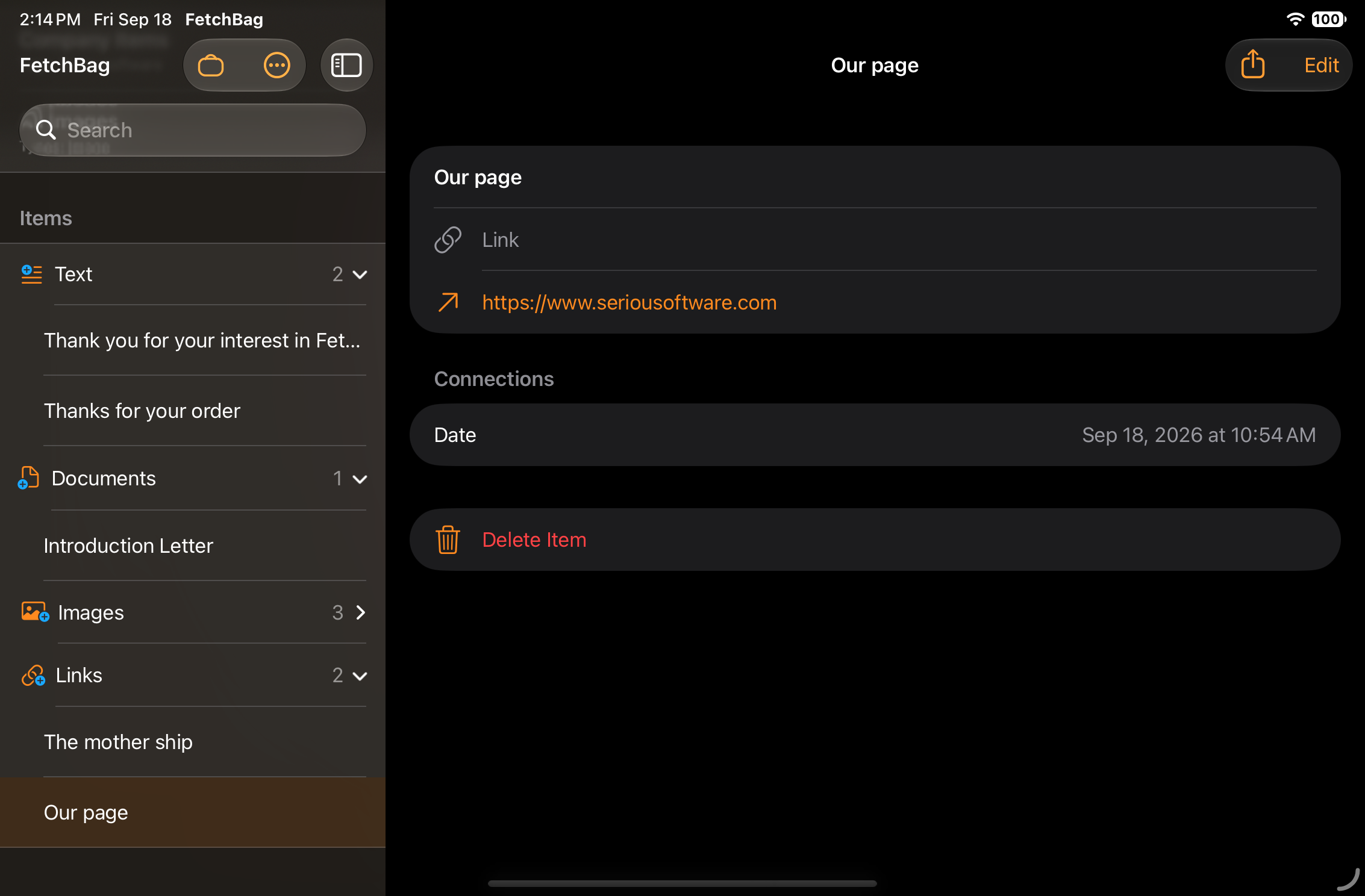
Your FetchBag library
The main library groups your Items by type:
- Text — reusable text you want to keep handy.
- Documents — documents and other files you want to find again.
- Images — images you add from Photos.
- Links — websites and other URLs.
The library also includes a FetchBags section. A saved FetchBag is a saved search of your Items. It does not move, copy, or own the Items it finds. Each time you open it, it shows the Items that currently match its criteria, including Items added after the FetchBag was saved.
Where FetchBag stores your Items
By default, FetchBag stores your Items and saved searches in a local FetchBag folder in the app's internal Documents directory.
You can choose a different storage folder in Settings. When you do, FetchBag asks whether you would like the current files moved to the new location.
Add something you want to use again
Every Item has a title and can also include a date, people, places, and tags. The Item type determines the primary content you add.
Add a Text Item
Tap Add Text on the main screen. Enter a title and the text you want to keep. Both are required before you can save.
Text can be anything you expect to reuse: a short snippet, a canned reply, information you regularly enter into forms, or longer reference text.
Once saved, a Text Item includes an Email action. FetchBag opens your default email app with the Item's title as the subject and its Text as the message body.
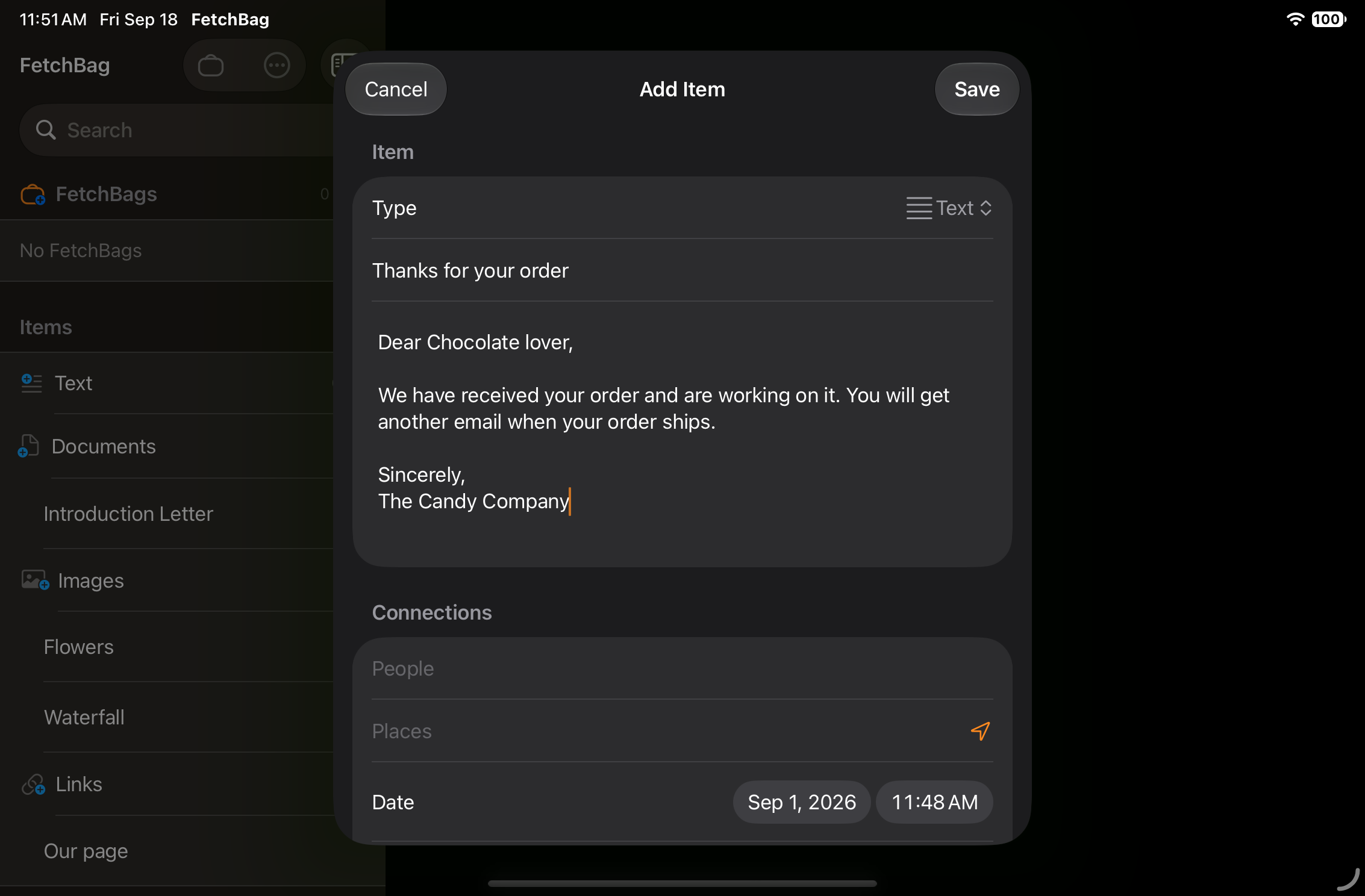
Add a Link Item
Create a Link Item and enter a title and URL. You can also add Notes about the link.
If you enter a URL without a scheme, FetchBag attempts to treat it as an HTTPS address.
When you fetch the Item later, use its URL action to open the link.
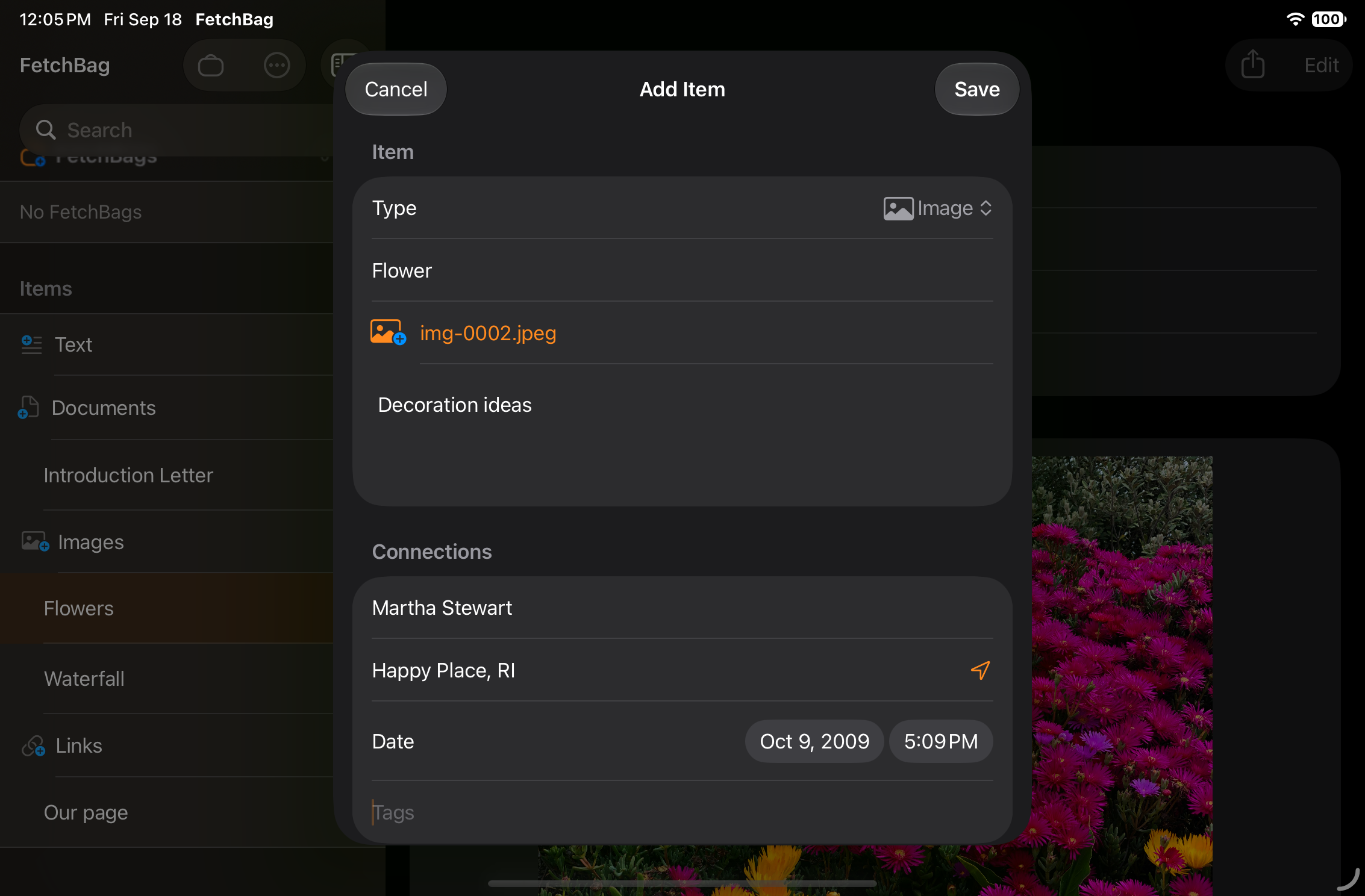
Add an Image Item
Create an Image Item and choose an image from Photos. You can also add Notes about the image.
FetchBag stores its own copy of an Image Item rather than depending on continued access to the original in Photos.
When available, FetchBag uses photo metadata to help add context automatically. It can use the image creation date as the Item date and, when GPS metadata is available, resolve the image location to a city and state.
Add a Document Item
Create a Document Item and choose a file. You can also add Notes about the document.
FetchBag can use the file name as the title and the file modification date as the Item date when those values are available.
FetchBag keeps a reference to the original document rather than making a copy. This means changes to the original remain available through FetchBag.
If the document is moved or FetchBag can no longer find it, the Document Item remains in FetchBag with its saved information. You can reconnect the FetchBag Item to the document's new location in FetchBag.
Connect an Item to what you remember
Finding something later is often easier when you remember its context rather than its exact title or filename.
FetchBag lets you connect an Item to:
- People
- Places
- Date
- Tags
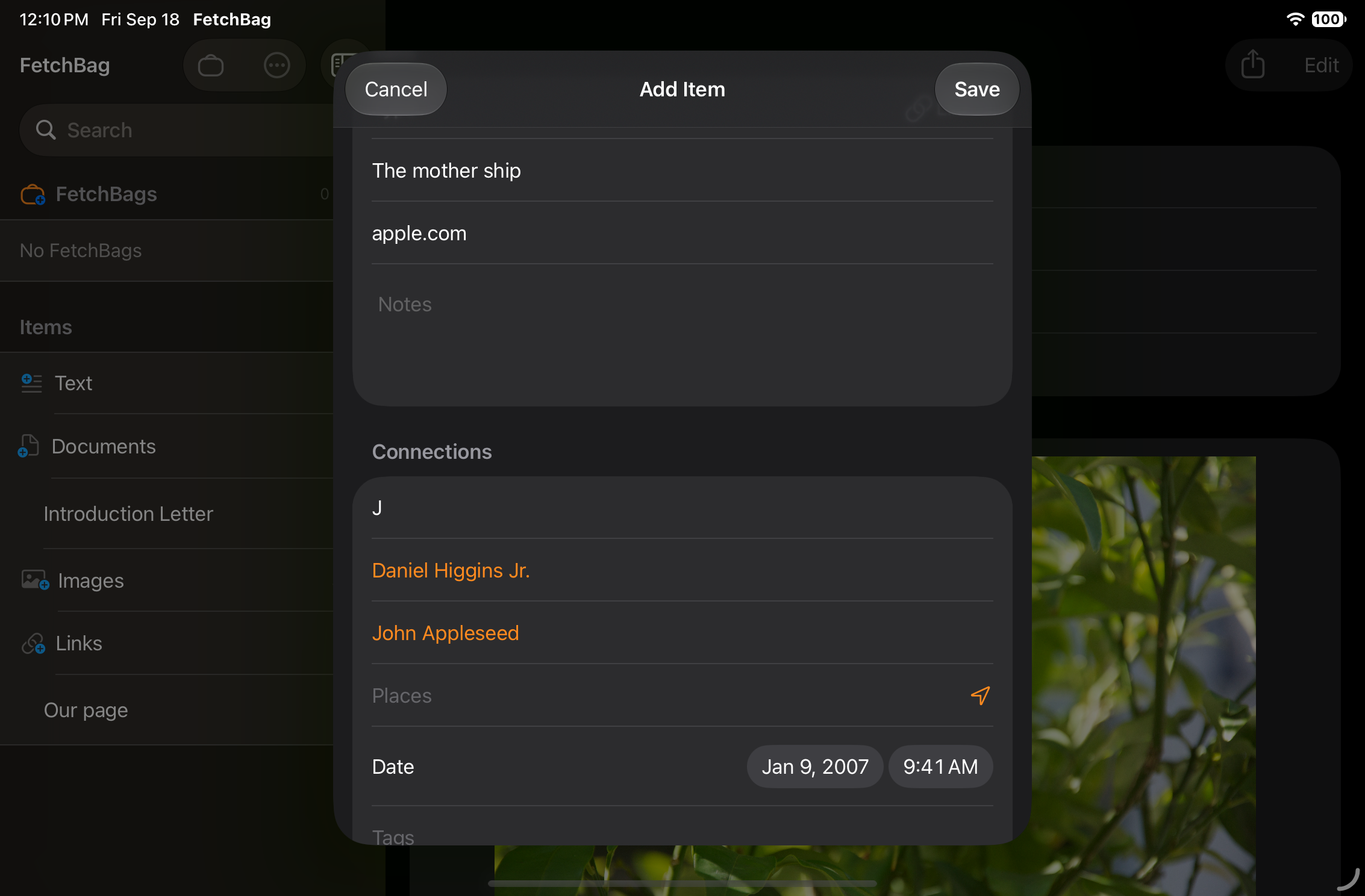
People, places, and tags can be entered manually.
As you type in People, FetchBag can suggest matching names from Contacts. Select a suggestion to add that person and continue entering additional names. You can always enter a name manually, and FetchBag continues to work if you choose not to give it access to Contacts.
For Places, you can enter a location manually or use your current location button to help fill it in.
For Document, Image, and Link Items, the Notes field gives you a place for useful free-form context that does not naturally belong in People, Places, Date, or Tags. For a Text Item, the Text itself is the Item's primary content.
Find something quickly
Use the Search field in the library when you know a word or detail associated with an Item.
FetchBag searches across titles, Item types, Text and Notes content, URLs, file names, people, places, and tags.
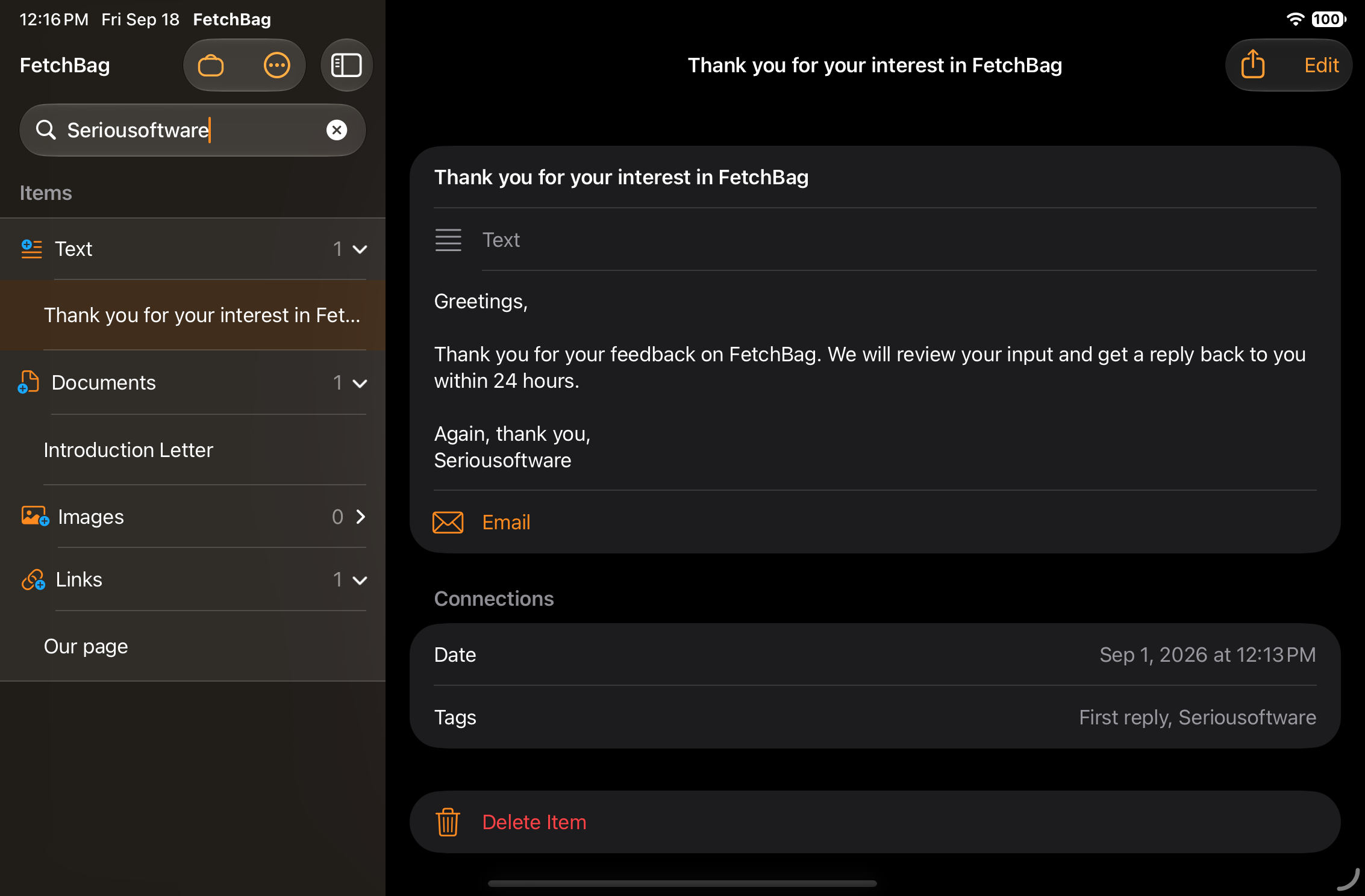
Use QuickBag for a compound search
QuickBag is a one-time compound search for the times when a simple text search is not enough.
Choose one or more criteria such as:
- Item type
- Title
- Text or Notes
- Image or document name
- URL
- People
- Places
- Tags
- Date
Date searches can include Items Before a date, After a date, or Between two dates.
You can also run QuickBag without any criteria to see all Items.
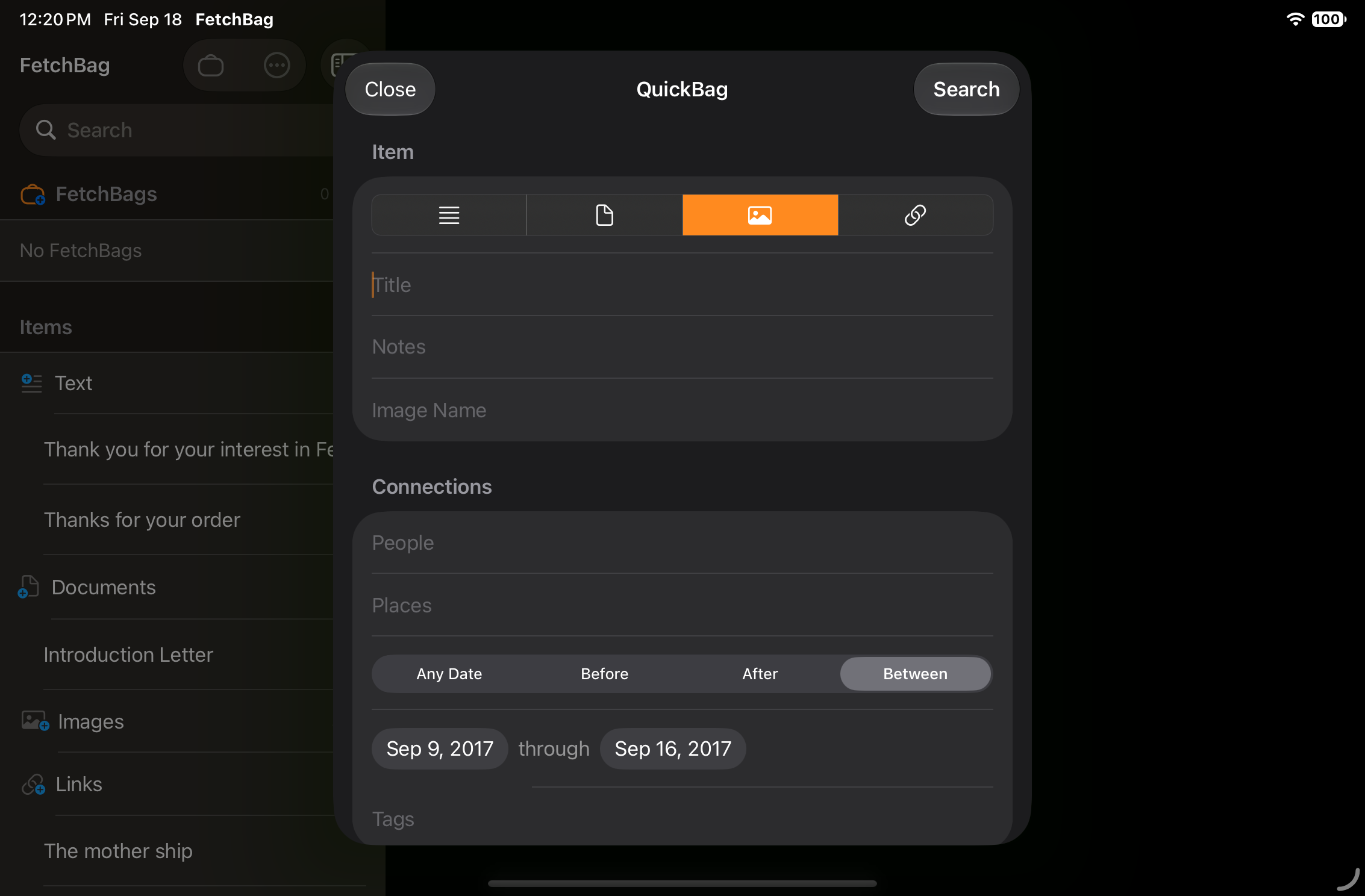
Run the search and all matching Items are displayed.
If you want to use that search again, save it and give it a Bag Name. It then appears as a FetchBag in the FetchBags section.
A saved FetchBag is a saved search, not a folder. Its results stay current as your Items change.
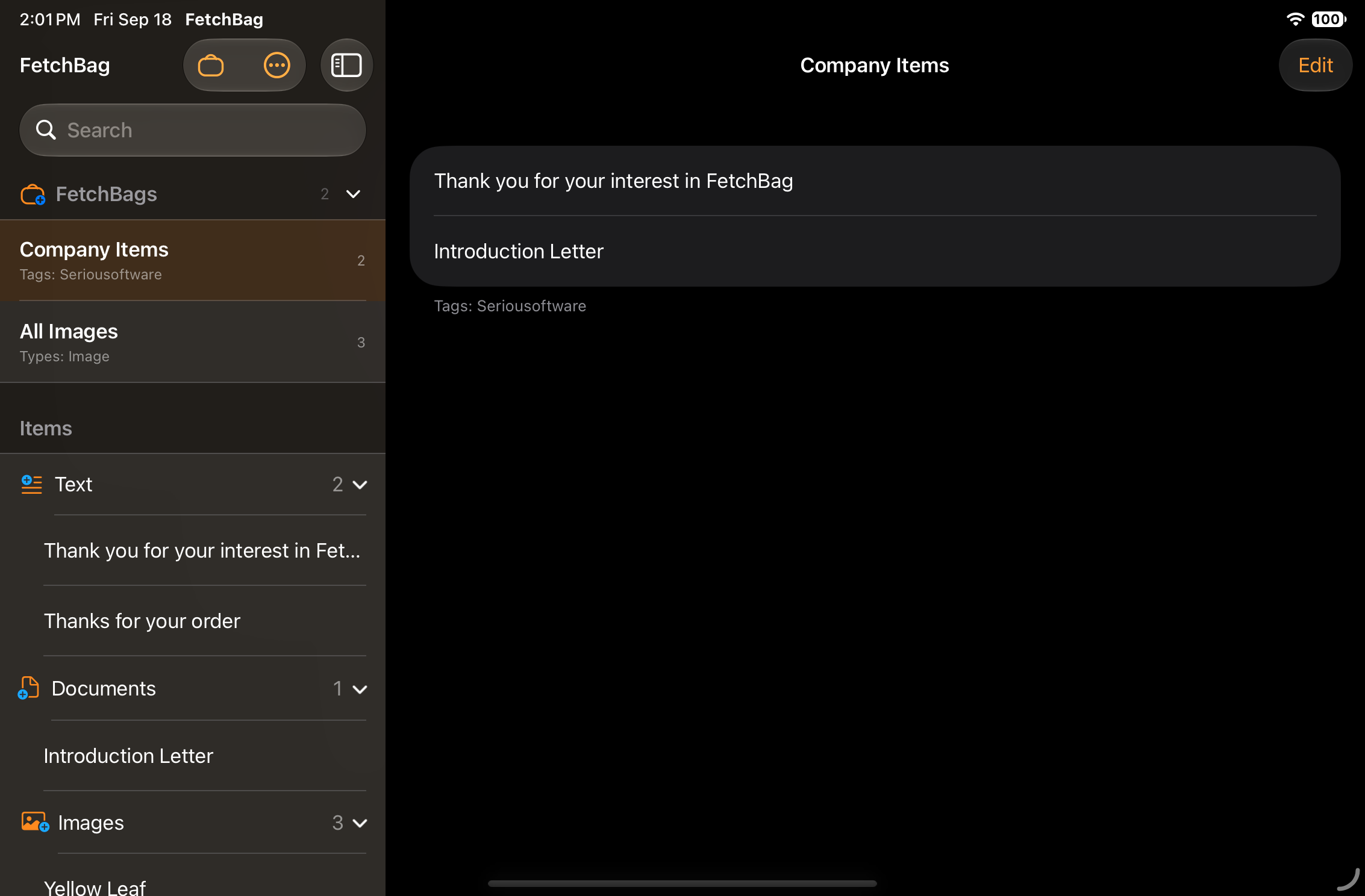
Fetch and reuse an Item
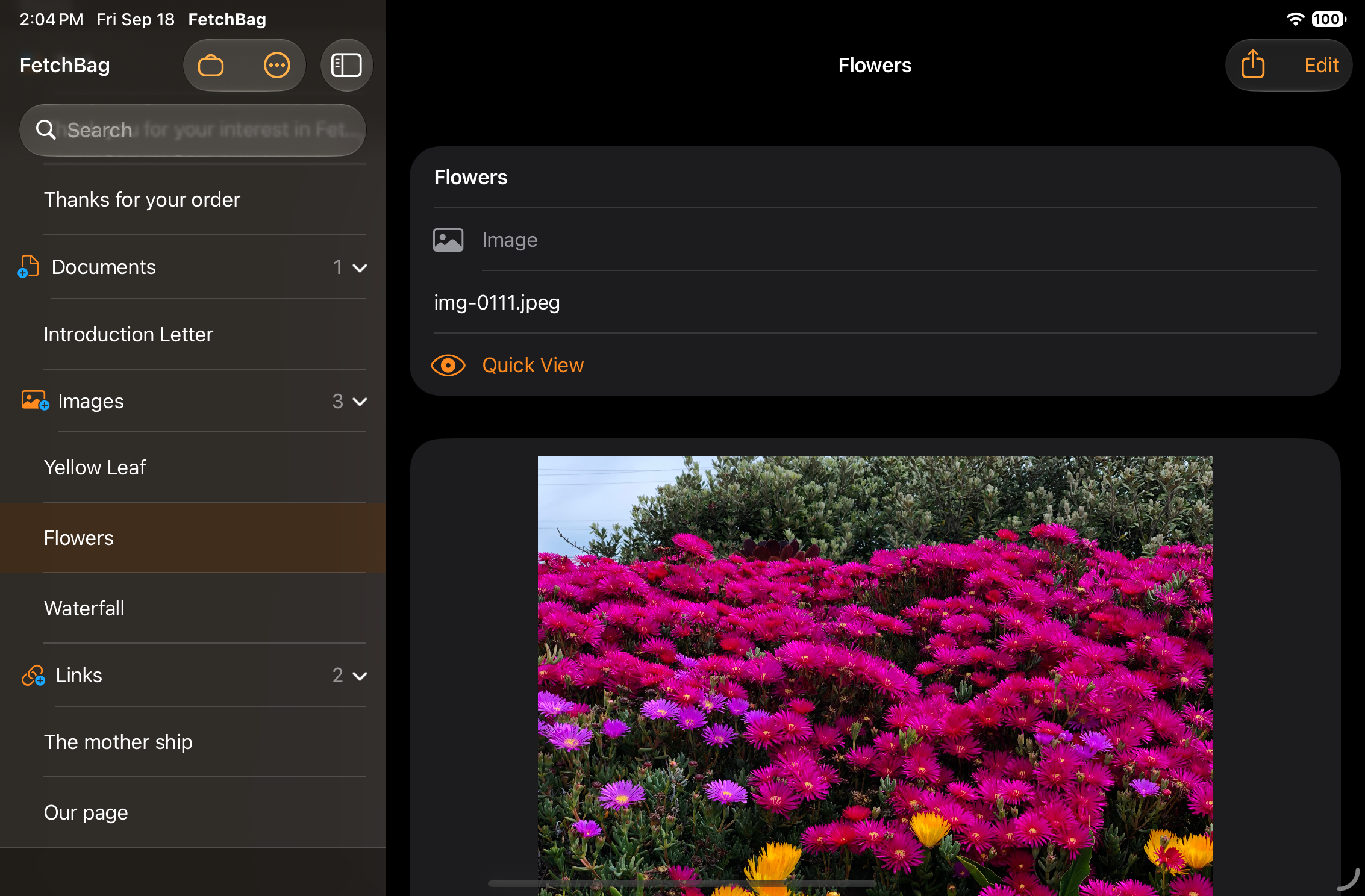
Select an Item to open its detail view. The available actions depend on what kind of Item you fetched.
- Text — reuse the saved Text or send it through your email app.
- Document — share the original document with compatible apps.
- Image — preview the image with Quick Look and use the system sharing options when needed.
- Link — open the saved URL.
If a referenced Document is no longer available, FetchBag keeps the Item and its saved information so you can reconnect it to the document's new location.
Use FetchBag with Shortcuts
FetchBag works with Apple's Shortcuts app, so you can add and find Items without opening FetchBag and use what you find as part of larger automations.
For example, you can find reusable Text and copy it to the clipboard, or find a Document and pass the actual file to another Shortcut action.
See Using FetchBag with Shortcuts for the available actions, examples, and tips for building FetchBag into your automations.
Use FetchBag with a keyboard
FetchBag supports hardware keyboards on iPad, including commands for creating Items, saving and editing, moving between fields, and working with QuickBag.
See Keyboard Shortcuts for the complete list of supported commands.
Free and Pro
The free version of FetchBag supports up to 10 saved Items.
When you reach that limit, you can upgrade to FetchBag Pro for unlimited Items.